

PigeonCast:Mirror via AirPlay
PigeonCastPigeonCast:Mirror via AirPlay turns a compatible Android device into an AirPlay receiver for iPhone and iPad screen mirroring, audio casting, and photo or video playback. It is designed for presentations, lessons, meetings, and home media sharing over a local Wi-Fi network.
Screenshots
About this app
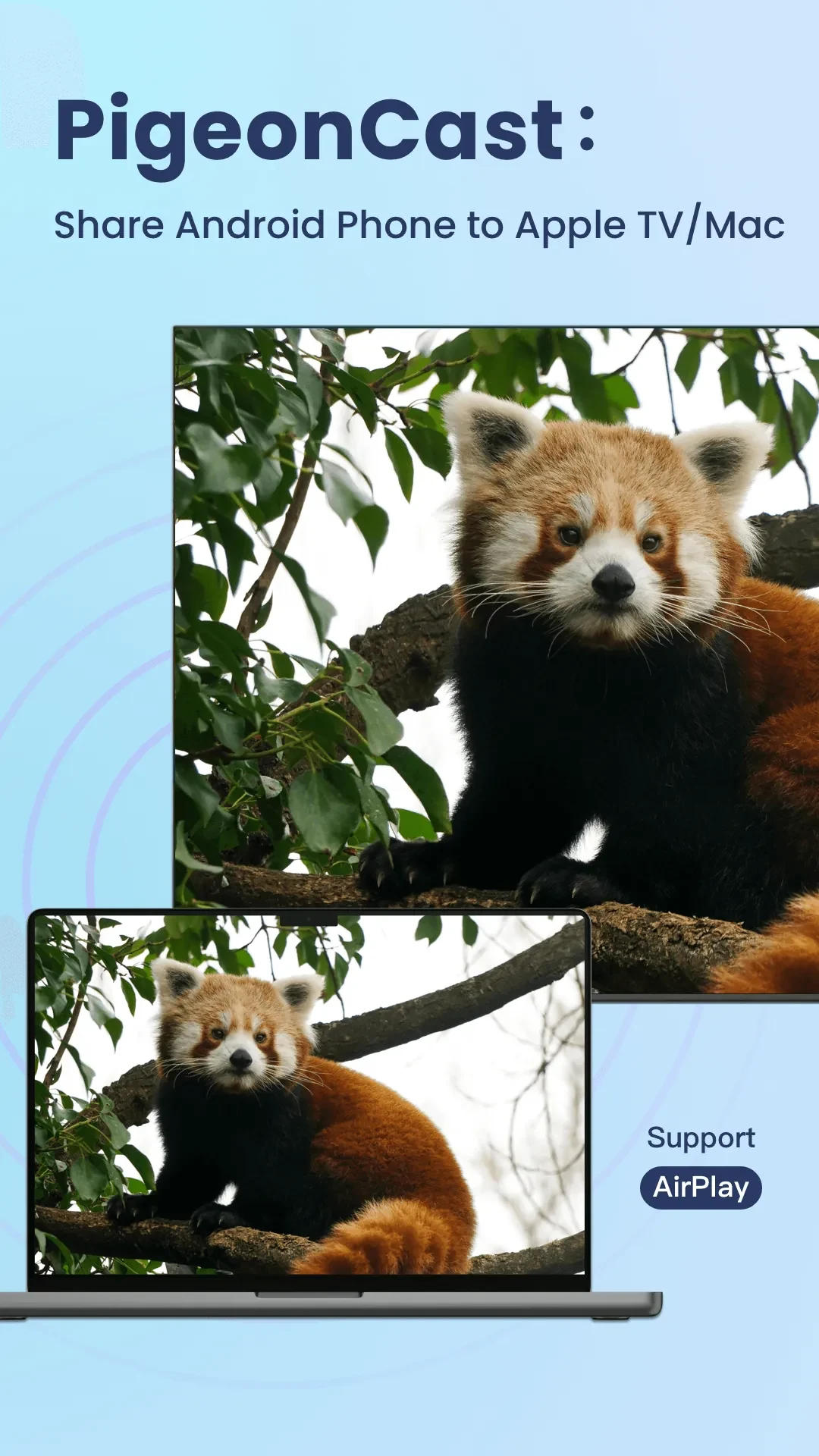
PigeonCast:Mirror via AirPlay turns a compatible Android device into an AirPlay receiver for Apple devices. It allows an iPhone or iPad to mirror its screen, send audio, or play photos and videos on the Android host through a local Wi-Fi network.
Mirroring and media playback
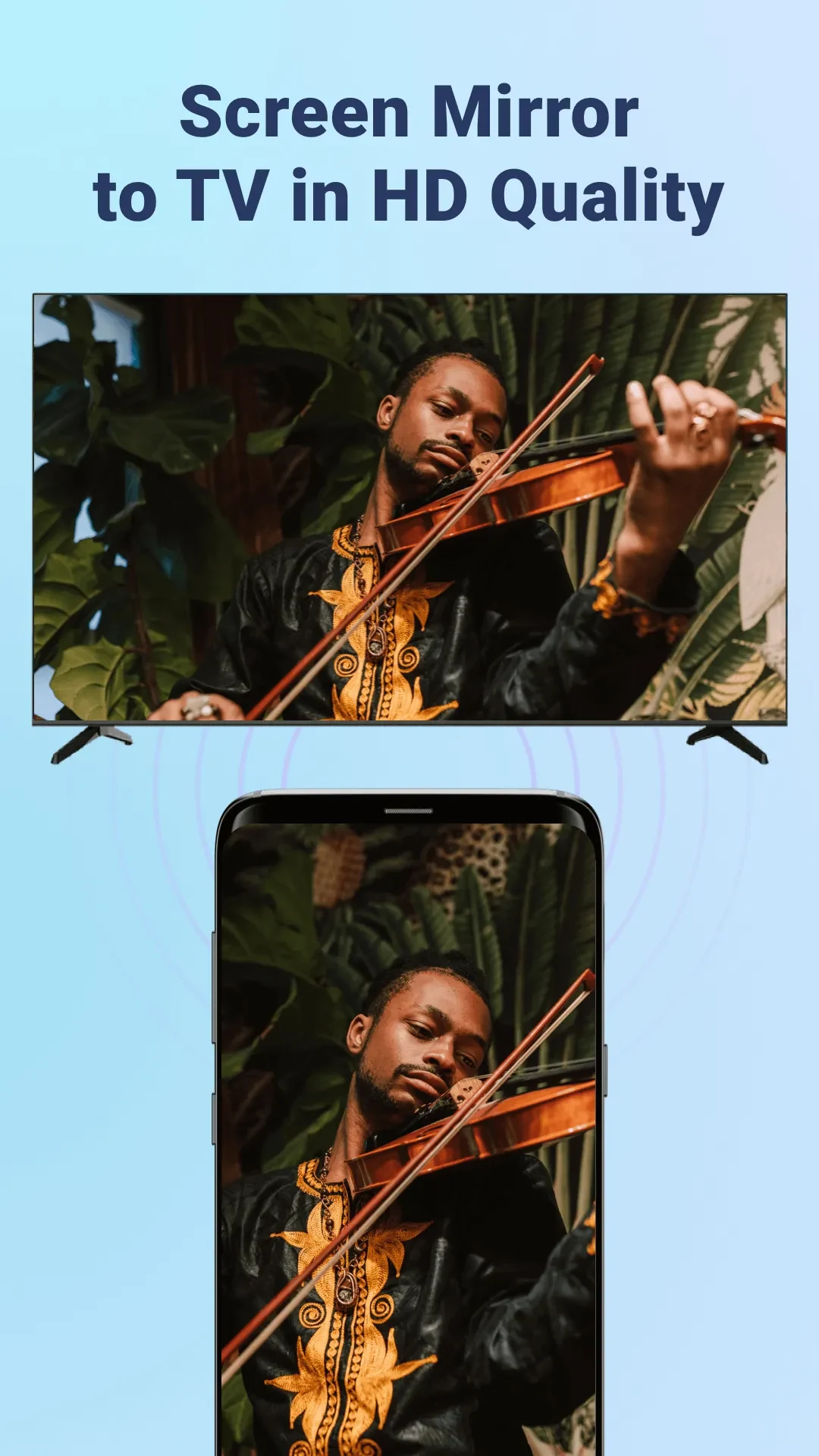
The app supports real-time display mirroring from an iPhone or iPad, making it suitable for showing slides, whiteboard applications, demonstrations, or other device content on a larger Android-powered screen. Separate audio casting routes sound from the Apple device to the Android speaker or to an attached audio system.
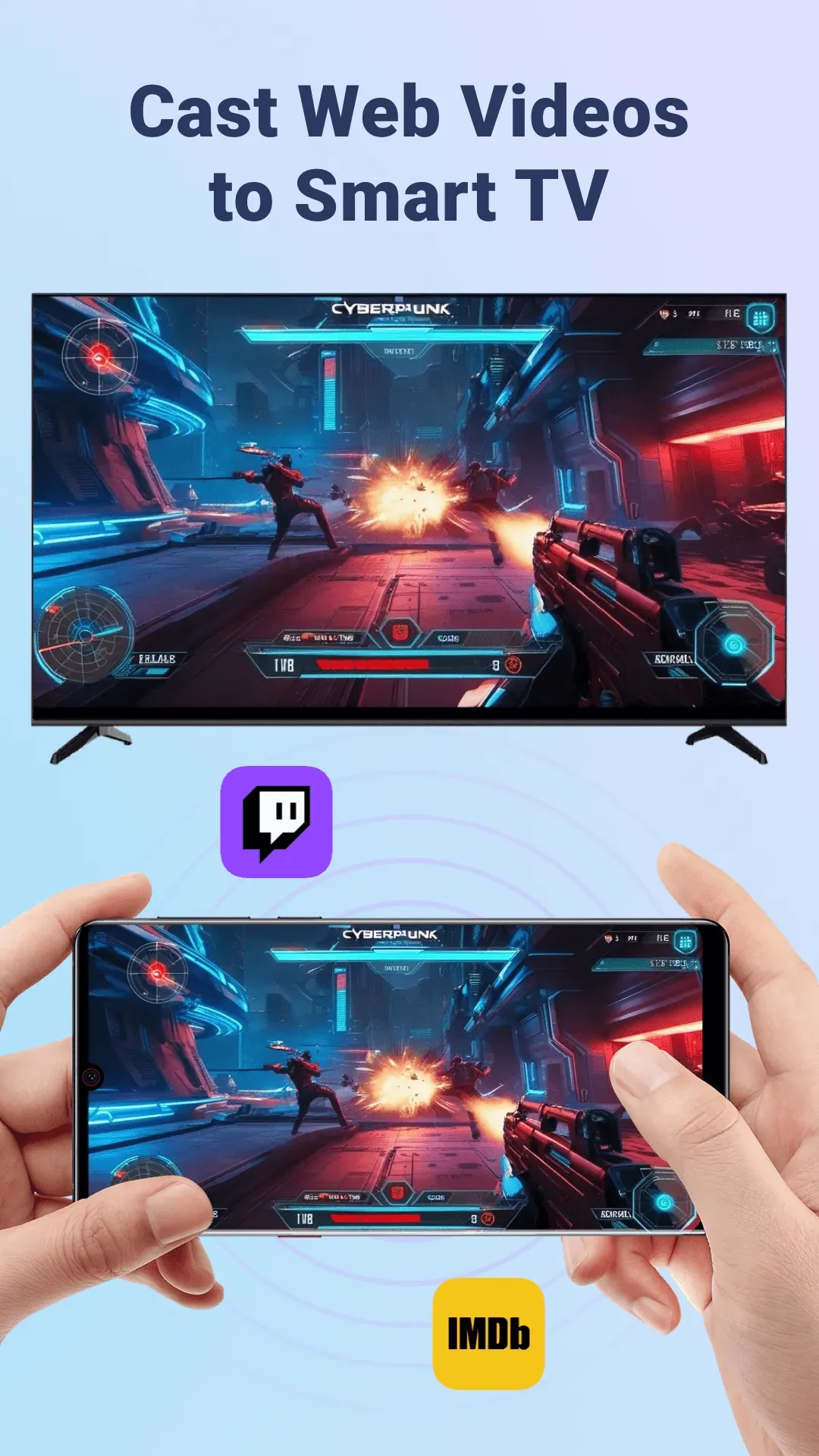
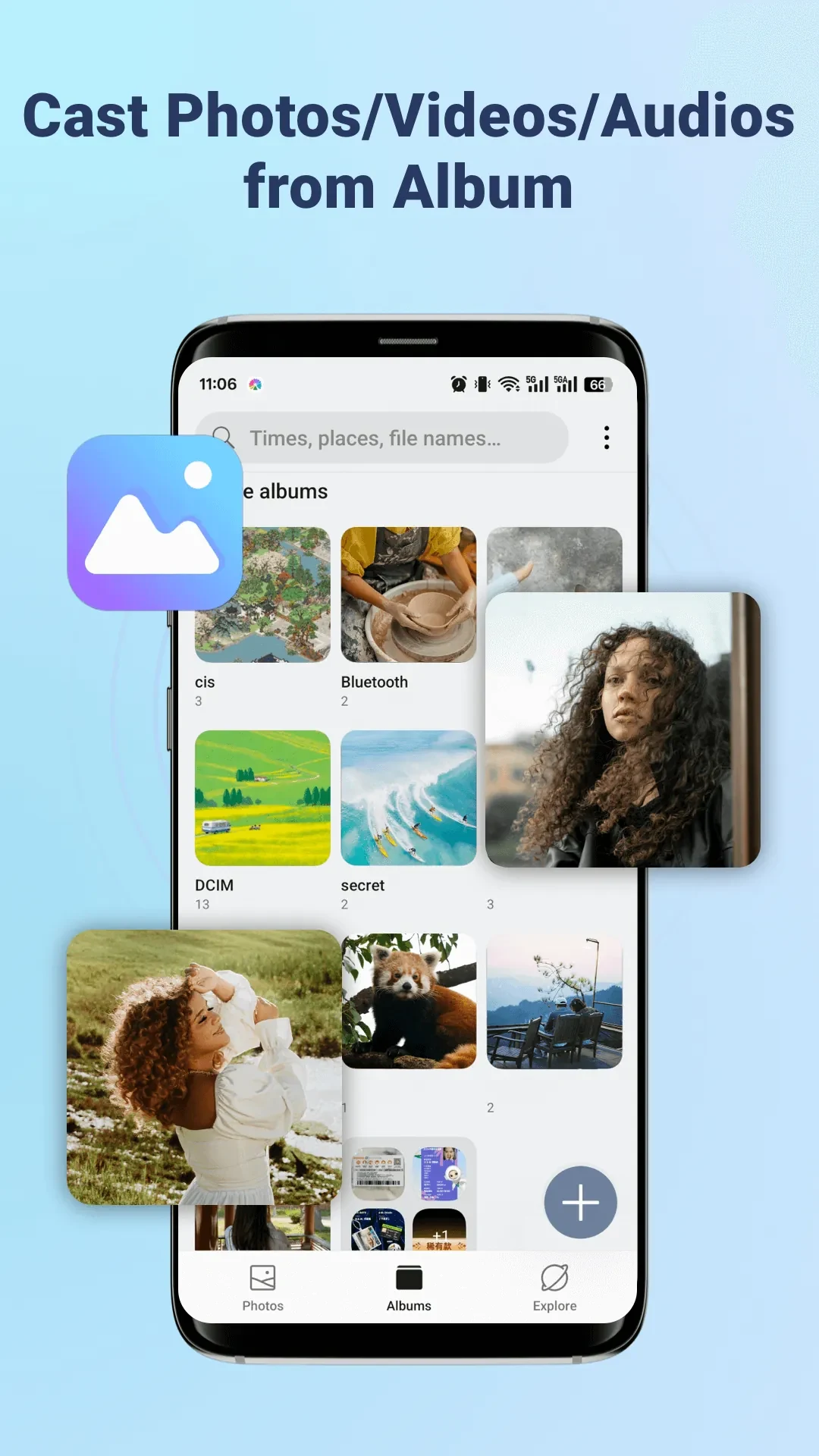
For media sharing, an Apple device can send photos and videos for playback on the receiver. The app is intended to support both video and audio through AirPlay services, with an emphasis on responsive connections and image quality. Actual results depend on the devices and network being used.
Connection workflow
PigeonCast:Mirror via AirPlay announces itself on the local network so supported Apple devices can discover it as a receiver. After selecting the Android device from the sender, users can begin mirroring or casting. The app is designed to connect without additional hardware, and the source describes local-network operation without an additional account or cloud permissions.
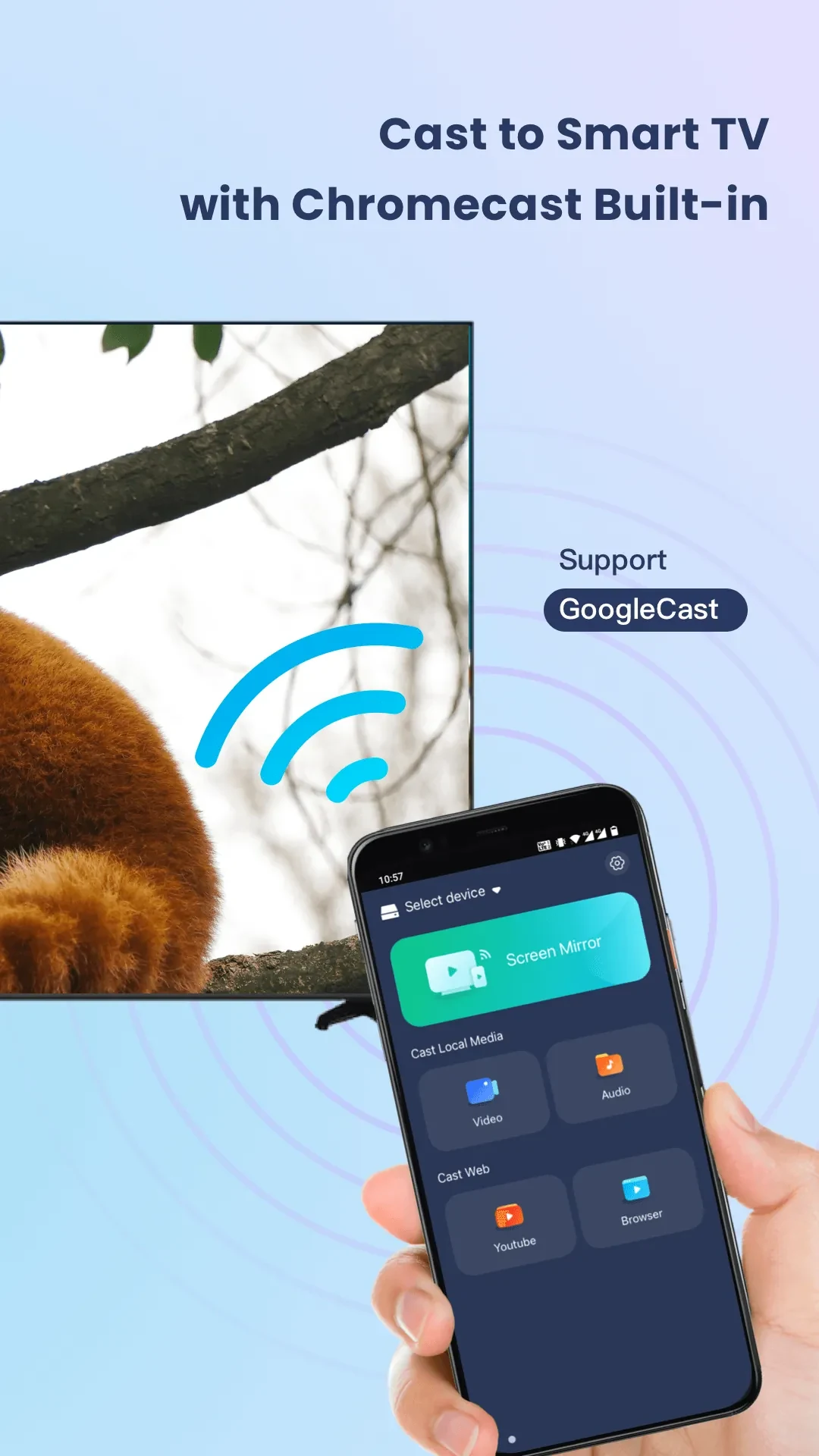
Its main screen shows the receiver name and connection status, with a direct control for starting or stopping a session. A clearly named receiver can be useful when several Android devices are available in the same area. The app also provides basic quality controls and latency indicators for checking responsiveness during a session.
Practical uses
In education, an iPad can display lesson slides or a whiteboard application on an Android tablet or connected classroom display. At home, an iPhone can send video to an Android-powered smart display or TV box. In a small office, the receiver can be used to share presentations without changing physical adapters during a meeting.
Network and performance considerations
Both devices need suitable access to the same local network for discovery and casting. A 5 GHz Wi-Fi connection and a modern router can improve smoothness, while connecting the Android host through Ethernet may reduce packet loss where wired networking is available. Closing background applications can also free device resources and help reduce frame drops or audio interruptions.
Performance varies with network quality. If the sender cannot find the receiver, refreshing Wi-Fi on both devices can refresh discovery services. Restarting the router, changing Wi-Fi bands, and checking that both devices share the same subnet may help with unstable connections. Guest networks can prevent device-to-device communication.
Getting started
After installation, launch the app and allow the local network permission needed for it to announce itself to AirPlay senders. Naming the Android receiver clearly can simplify selection in environments with multiple receivers. A short video test before a presentation can confirm that the expected video quality and audio routing are available on the chosen devices.
Version history
View all14 Oct 2026 · stable